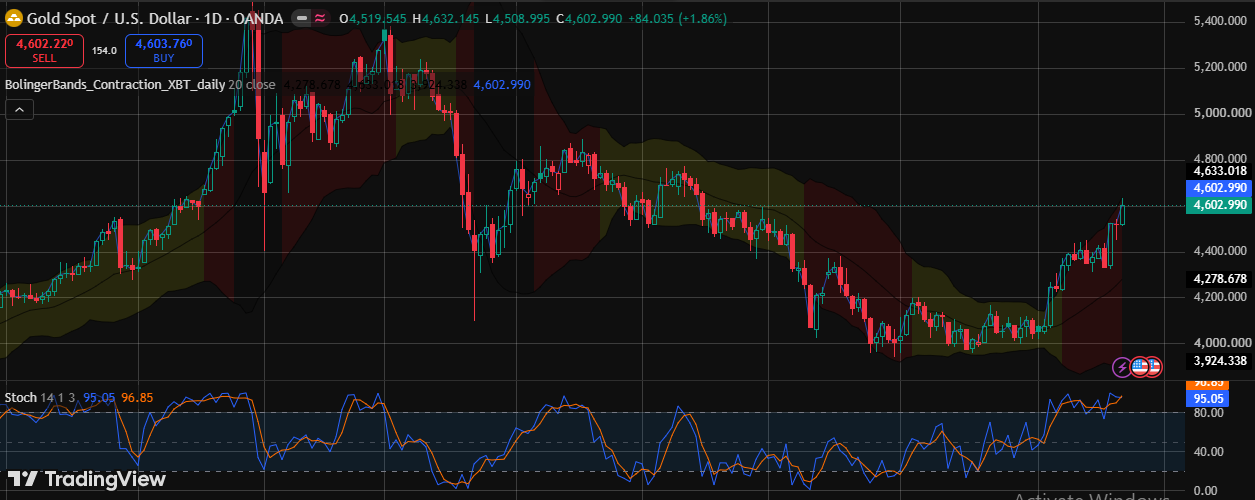
How to Set Up Stop Losses.I still remember the night I lost almost $600 on a single ES futures trade because I “forgot” to attach a stop loss. I told myself I’d add it manually once price moved a bit in my favor. Price didn’t move in my favor. It gapped against me during a news release, and by the time I got my hands back on the mouse, the damage was done.
That was seven years ago, and I have never taken a trade on NinjaTrader without a stop loss attached since that night. Not once.
If you’re here because you just downloaded NinjaTrader and you’re staring at Chart Trader wondering where the stop loss button even is, you’re in the right place. I’m going to walk you through exactly how I set up stops on this platform, the mistakes I made getting there, and the settings that actually matter for your account size and risk tolerance.
Key Takeaways
- NinjaTrader gives you three main ways to set a stop loss: Chart Trader, the SuperDOM, and ATM Strategies
- ATM Strategies are the safest method because they attach your stop loss automatically the moment your entry order fills
- Stop Market orders guarantee execution but not price; Stop Limit orders guarantee price but not execution
- Always test your stop loss setup on the Sim101 simulated account before going live
- Position sizing and tick value matter just as much as where you place the stop itself
What Actually Happens When You Set a Stop Loss on NinjaTrader
A stop loss on NinjaTrader is basically a standing instruction sitting on the exchange’s order book. Once price touches your trigger level, that instruction wakes up and either converts into a market order (Stop Market) or a limit order (Stop Limit) depending on which type you picked.
Here’s the part beginners get wrong. A stop loss doesn’t sit inside NinjaTrader waiting for the software to notice price moved. It gets sent directly to your broker’s server and then to the exchange, which means it can trigger even if your internet drops or your laptop crashes. That’s actually the whole point of using a real stop loss instead of a “mental stop” you plan to execute by hand.
I learned this the hard way when my wifi cut out during a Nasdaq scalp trade. My mental stop would’ve meant sitting there watching the position bleed with zero way to act. My actual stop loss, sitting on NinjaTrader’s ATM strategy, closed the trade exactly where I told it to, three minutes before my internet came back.
NinjaTrader Order Types You Need to Understand First
Before you place a single stop, you need to know the difference between these two order types because NinjaTrader will ask you to pick one every time.
Stop Market triggers a market order once your stop price gets hit. It guarantees your position closes, but during fast markets or news spikes, you might get filled a few ticks worse than your stop price. This is called slippage, and every futures and forex trader deals with it eventually.
Stop Limit triggers a limit order at your stop price. This guarantees the price you get filled at, but it does NOT guarantee you get filled at all. If price gaps straight through your limit level, your order can sit there unfilled while your account keeps losing money.
For most day trading setups on ES, NQ, or forex pairs like EUR/USD, I stick with Stop Market. The small amount of slippage is worth knowing my position will definitely close. I only reach for Stop Limit on illiquid instruments where slippage can get brutal, like certain small-cap futures or thinly traded crypto CFDs.
Setting Up a Stop Loss Using Chart Trader (Step by Step)
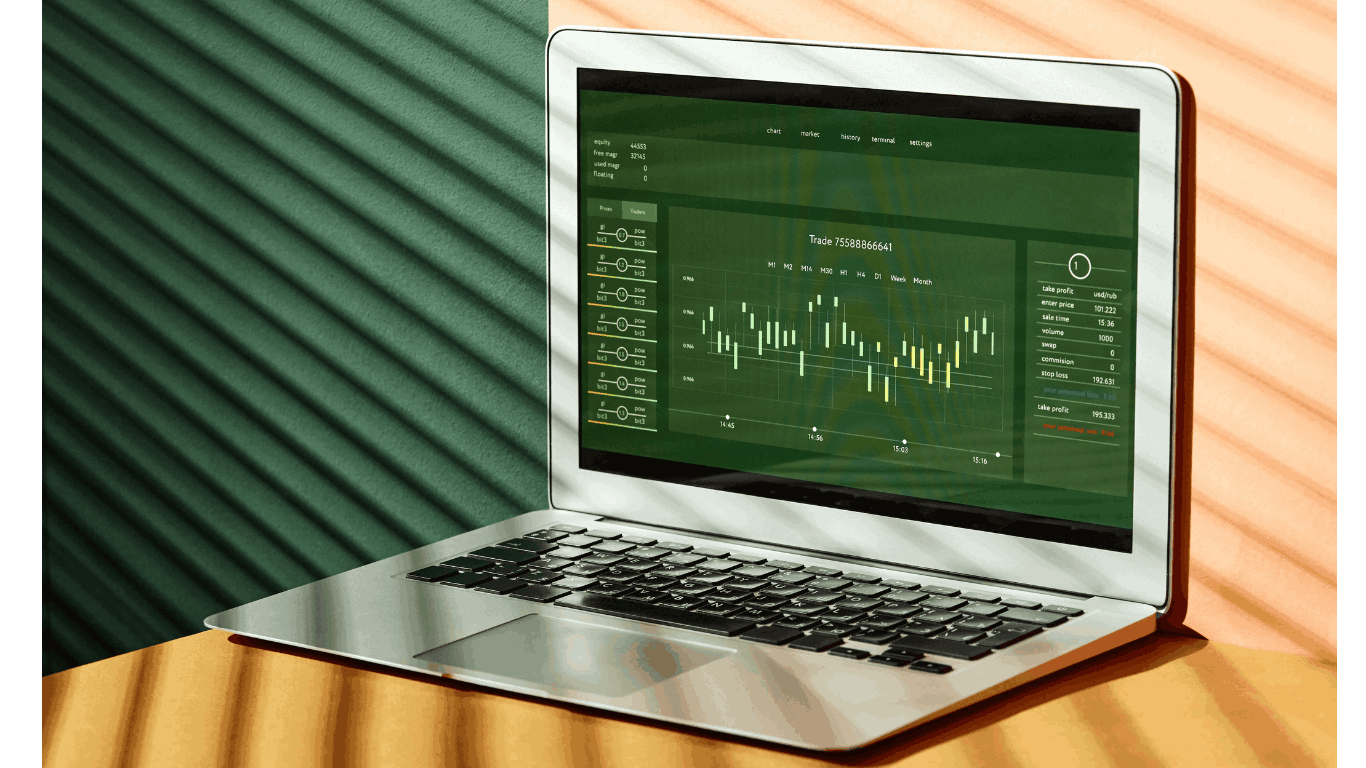
Chart Trader is the panel most new NinjaTrader users start with because it lives right on your price chart. Here’s how I set it up.
First, open any chart and right-click on it. Select “Chart Trader” from the menu, or just hit Ctrl+T. A panel appears on the right side of your chart showing Buy and Sell buttons along with fields for Quantity, Stop Loss, and Profit Target.
Before placing your entry, type your stop loss distance into the Stop Loss box. NinjaTrader lets you enter this in ticks, which I actually prefer over dollar amounts because tick-based stops stay consistent no matter which instrument you’re trading. If I’m trading the ES and I want an 8-tick stop, I type 8 into that box.
Once your entry order fills, NinjaTrader automatically drops a stop loss line onto your chart at the correct distance. You’ll see it as a red dashed line below your entry if you’re long, or above it if you’re short. You can literally drag that line with your mouse to adjust the stop after the fact, which I do constantly when I want to move a stop to breakeven.
One thing that tripped me up early on: Chart Trader’s stop loss only activates automatically if the “Attached orders” or ATM checkbox setup is configured correctly underneath the quantity field. If you skip that step, your entry fills with zero protection attached, which is exactly the mistake that cost me $600.
Setting Up a Stop Loss Using the SuperDOM
The SuperDOM is NinjaTrader’s price ladder, and honestly, once you get comfortable with it, it becomes faster than Chart Trader for scalping.
To place a stop loss here, right-click on the price level where you want your stop to sit, after you’re already in a trade. A menu pops up with order options including Stop Market and Stop Limit. Click the one you want, and NinjaTrader places the order right there on the ladder as a colored marker.
What I like about the SuperDOM is the visual feedback. You can literally see your stop loss sitting a certain number of rows below your entry, and you can drag it up or down in real time as the market develops. During volatile sessions like the London-New York overlap in forex, having that visual clarity has saved me from fat-fingering an order more than once.
The SuperDOM also lets you set up OCO orders, which stands for One Cancels Other. This links your stop loss and your profit target together, so when one gets hit, NinjaTrader automatically cancels the other. Without OCO, you risk having both orders sitting live, which can leave you with a confusing double position if you’re not paying attention.
Using ATM Strategies for Automatic Stop Loss and Profit Target
This is the method I actually recommend for anyone serious about trading NinjaTrader consistently, and it’s the one I use for 90% of my own trades.
ATM stands for Advanced Trade Management. It’s a template system that automatically attaches your stop loss and profit target the second your entry order fills, no manual steps needed in the heat of the moment.
To build one, go to Control Center, click Tools, then ATM Strategy. Click New, name your template something you’ll remember like “Scalp8Tick” or “SwingES,” and fill in your Stop Loss field in ticks, your Profit Target field in ticks, and choose your order type for each.
Here’s where ATM gets genuinely useful. There’s an option called “Auto Breakeven” where you tell NinjaTrader to automatically move your stop loss to your entry price once the trade moves a certain number of ticks in your favor. There’s also “Auto Trail,” which lets your stop loss follow price at a fixed distance as the trade runs in profit.
I run a Auto Breakeven trigger at 6 ticks on my ES scalps, meaning once I’m 6 ticks in profit, my stop jumps to breakeven automatically. This single setting has saved me from turning dozens of winning trades back into losers over the years. Once you build a template you like, you select it from the dropdown right in Chart Trader before you enter, and it does the rest.
Trailing Stops on NinjaTrader — When and How I Use Them
Trailing stops sound fancy, but they’re simple once you’ve used one a few times. A trailing stop moves along with price as your trade gains profit, locking in gains without you having to babysit the chart.
Inside your ATM template, you’ll find trail settings where you pick a trail type: Trail by ticks, Trail by percent, or a custom trail strategy if you’re comfortable with NinjaScript. I mostly use the tick-based trail because it’s predictable and I know exactly how much room I’m giving the trade to breathe.
Here’s my honest take after years of using trailing stops: they work great in trending markets and they get you chopped up in choppy, range-bound conditions. If NQ is grinding sideways in a 15-point range, a tight trailing stop will get hit repeatedly even though the overall move never really develops. I’ve started checking Forex Factory’s economic calendar and general market conditions before deciding whether to enable trailing stops that day, because trending days versus chop days genuinely change how well this tool performs.
Trailing stops are not something to set and forget completely, either. I still check in on my positions every few minutes because unusual volatility, especially around Fed announcements or CPI releases, can move faster than a standard trail distance can handle cleanly.
Pros and Cons of Setting Stop Losses on NinjaTrader
Pros
- ATM strategies remove human emotion from the equation since your stop attaches automatically the moment you enter
- Tick-based stop settings stay consistent across instruments, so you don’t need to recalculate for every symbol
- Stops sit on the exchange server, meaning they still work even if your platform crashes or your internet drops
- The visual drag-and-drop stop line on charts makes adjusting risk fast and intuitive
- OCO order linking prevents the confusion of having both a stop and target live at the same time
Cons
- The initial ATM template setup has a learning curve and confuses a lot of beginners in their first week
- Stop Market orders can suffer real slippage during high-volatility news events like NFP or FOMC
- Simulated fills on Sim101 sometimes behave slightly better than live fills, which can create false confidence
- If your ATM template isn’t selected before entry, your stop won’t attach and you’re trading naked without realizing it
- Trailing stops can whipsaw you out of decent trades during choppy, low-momentum sessions
Step-by-Step: My Personal Stop Loss Setup Routine
This is the exact routine I run through before every single trading session, whether I’m trading ES futures or forex pairs through a NinjaTrader-compatible broker.
- Open Sim101 first thing and confirm my ATM templates loaded correctly. I never assume yesterday’s settings carried over cleanly.
- Check today’s economic calendar on Forex Factory for any red-flag news events. High-impact news changes how tight I set my stops.
- Calculate my position size based on account risk. I risk 1% of account equity per trade, so if my account sits at $10,000, that’s $100 max risk per trade.
- Convert that dollar risk into ticks based on the instrument’s tick value. On the ES, each tick equals $12.50, so a $100 risk allows roughly an 8-tick stop on one contract.
- Select the correct ATM template in Chart Trader that matches that tick distance before placing my entry order.
- Confirm my OCO linkage is active so my stop and target cancel each other properly.
- Place the trade, then immediately verify the stop loss line actually appears on my chart before I do anything else.
- Once price hits my breakeven trigger, I manually double-check the stop actually moved, because I don’t fully trust automation until I’ve verified it with my own eyes.
Mistakes to Avoid
Trading without confirming your ATM template loaded. I’ve watched traders in prop firm chat groups lose entire accounts because their template defaulted to “None” after a platform update and they didn’t notice until it was too late.
Using dollar-based stops instead of tick-based stops. Dollar stops sound intuitive, but they don’t account for volatility differences between instruments. An 8-tick stop on ES behaves totally differently than an 8-tick stop on Gold futures.
Widening your stop loss mid-trade because you “feel” it’ll come back. I did this constantly in my first two years. Every single time I widened a stop out of hope rather than logic, the loss got worse, not better.
Forgetting that Stop Limit orders can fail to fill during gaps. I switched a stop to Stop Limit once during earnings season thinking it would save me on price, and price gapped straight through it, leaving my position open and bleeding for another eleven minutes before I caught it manually.
One Last Thing Before You Go
Setting up a stop loss on NinjaTrader isn’t complicated once you’ve done it a handful of times. What’s actually hard is trusting the automation enough to stop babysitting every trade and second-guessing your own settings.
Give yourself a full week on Sim101 before you touch live money with a new ATM template. Watch how it behaves during a slow morning and a volatile news release. That’s the only way you’ll actually know if your stop distance and trail settings match your trading style, rather than just guessing and hoping.
Frequently Asked Questions
What is the best way to set a stop-loss?
Base it on market structure or volatility (like ATR, or just below/above a clear support/resistance level) instead of a random percentage — that ties your stop to price logic, not gut feeling.
What is the 7% stop-loss rule?
It’s a popular rule from stock investing (William O’Neil’s CANSLIM method) that says to automatically sell if a stock drops 7-8% below your buy price, capping downside before it snowballs.
Is 20% stop-loss good?
For active trading it’s usually too wide and lets losses run way past sensible risk management, though some long-term position investors use wider stops on purpose.
What is stop-loss with an example?
It’s an order that closes your trade automatically at a set price. Example: you buy EUR/USD at 1.1000, set your stop at 1.0950, and your position closes if price hits 1.0950, capping the loss at 50 pips.
Disclaimer:
This article reflects personal trading experience and opinions only, and does not constitute financial advice. Trading futures, forex, and other leveraged instruments carries substantial risk of loss and isn’t suitable for every investor.

Hira Ch is a Forex trader and financial content writer specializing in gold, crypto, and currency markets.Based in Lahore, she breaks down complex trading
concepts into simple, actionable insights at ExpertJourny.